

If you’re the type to get excited about new features coming to iPhone and iPad, well, that’s probably why you’re here right now. Apple announced iOS 15 and iPadOS 15 today, and you can get your hands on the developer betas right now.
There’s quite a bit that’s new. In FaceTime, you can now share music and videos, so you can watch content with the person that you’re talking to. The Safari browser is getting extensions, a first for mobile, and on iPad, there’s a new Universal Control feature that lets you work more seamlessly between an iPad and a Mac.
Now, enough talk. You’re here to find out how to install the iOS 15 and iPadOS 15 developer betas.
List of iPhones and iPads compatible with iOS 15 and iPadOS 15
- iPhone 6s and later
- iPad touch (7th generation)
- iPad mini 4 and later
- iPad Air 2 and later
- iPad 5th generation and later
- All iPad Pro models
How to install iOS 15 or iPadOS 15
Apple talks about iOS 15 and iPadOS 15 as if they’re different things, but they’re still just different versions of the same operating system, just like they were when they all fell under the iOS umbrella. That means that the process for installing the beta is exactly the same.
First things first
Backup, backup, backup. Most of these methods work as a software update where nothing should be erased, but that doesn’t make it perfect. And the user isn’t perfect either. If you find yourself starting from scratch, you’ll want to make sure you have a backup.
- In Settings, tap your name at the top, then go to iCloud -> iCloud Backup -> Back Up Now.


Using the configuration profile
This is the easiest and most straightforward way of installing the iOS 15 beta.
- Go to Apple Developer -> Develop -> Downloads, and click the ‘Install Profile’ button next to iOS 15 or iPadOS 15. The easiest way to do this is from your iPhone or iPad, but you can also download it from a PC and email it to yourself.

- After opening the file, go into Settings -> General -> Profiles and follow the on-screen instructions to install the configuration profile. You’ll have to reboot your device.

- Go to Settings -> General -> Software Update and install the update the way you normally would.


Using a restore image
Apple also makes full images available for each device. This method is more complicated, but it’s an option.
- Go to Apple Developer -> Develop -> Downloads, and under the iOS 15 or iPadOS 15 section, click ‘Download Restore Images’. Select your device from the list.

- Using a Lightning or USB Type-C cable (depending on your device), connect it to a Mac.
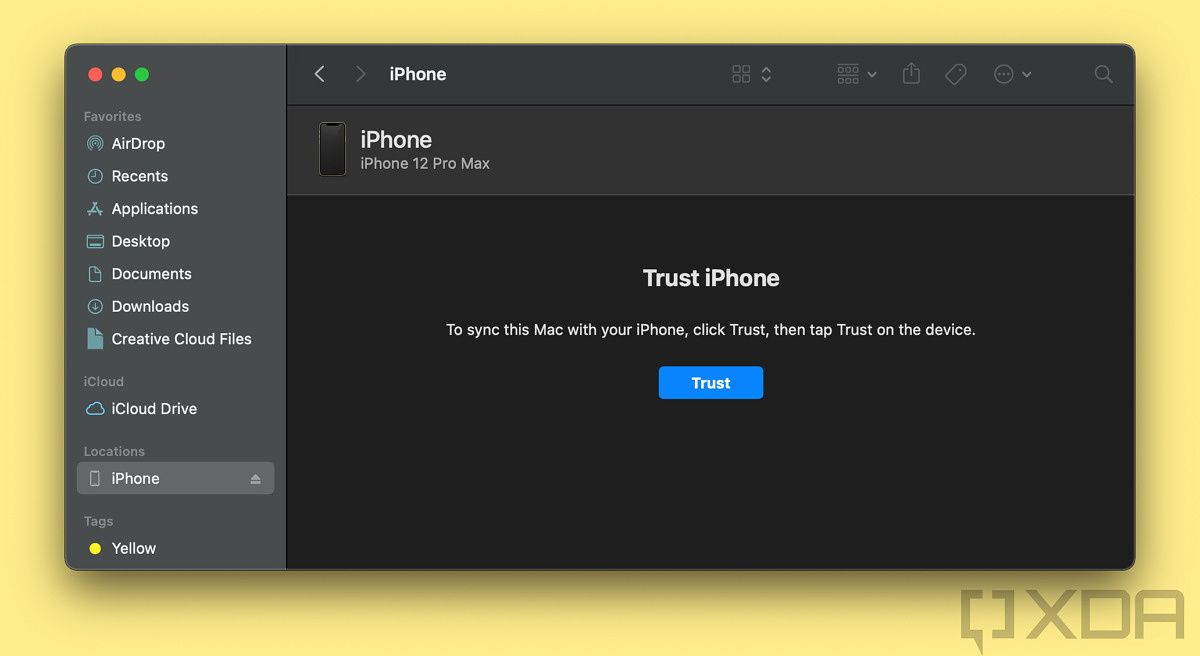
- You might have to choose to ‘Trust This Computer’ on your phone, and to ‘Trust iPhone’ on the Mac if you haven’t already.

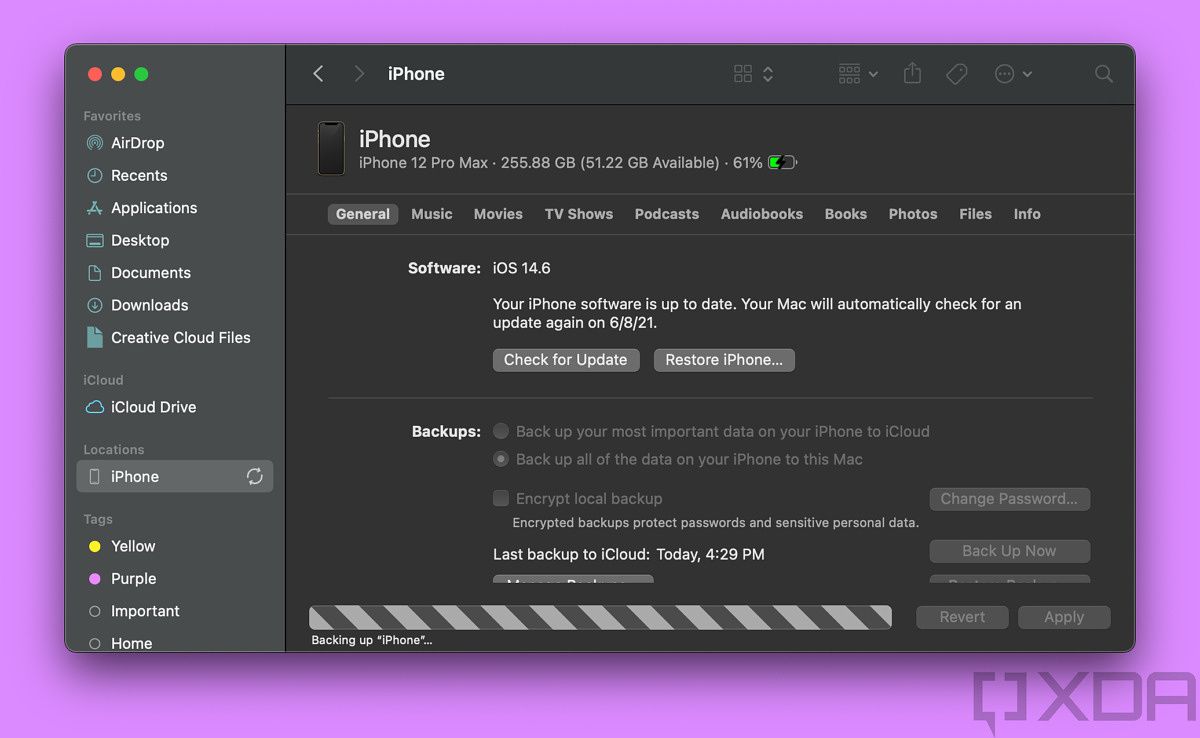
- After that, you’ll find the device in Finder. Select the iOS or iPadOS device on the side.

- While holding Option, press either ‘Check for Update’ or ‘Restore iPhone’. If you press the former, this will work as an update and you’ll keep all of your data. If you choose the latter, it will erase everything.

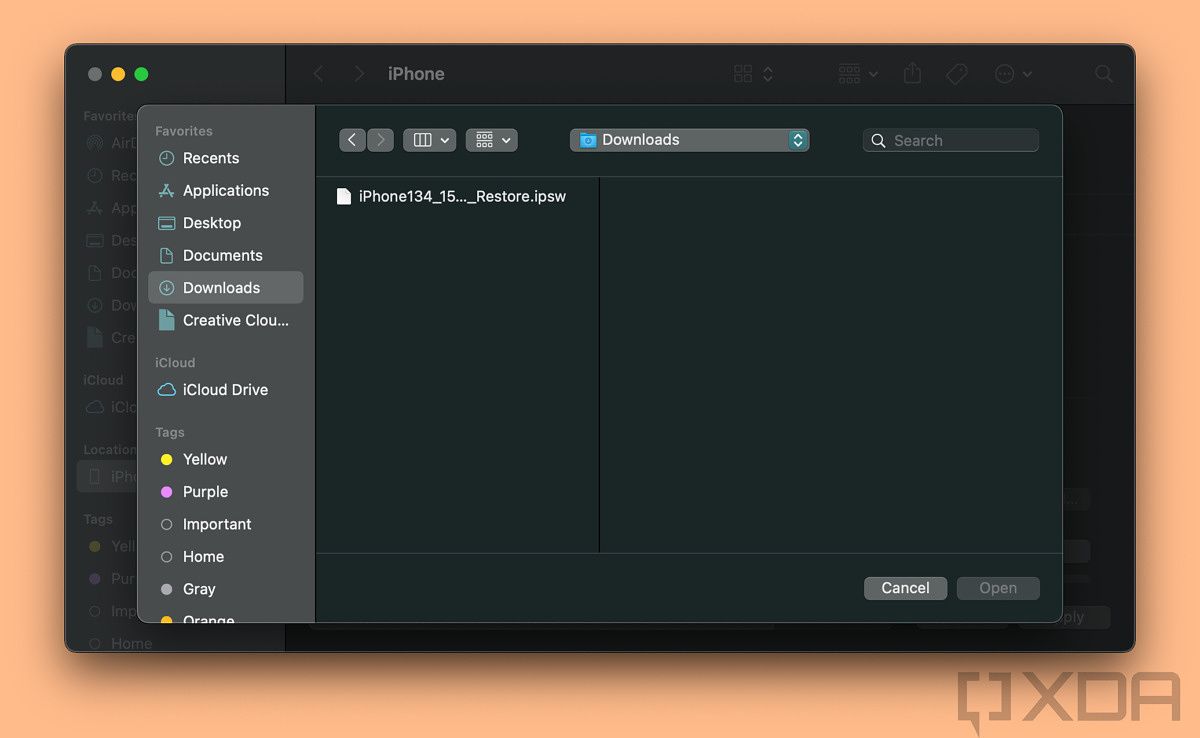
- Select the iOS 15 or iPadOS 15 image that you downloaded in the file dialog that appears.



Note that Apple is going to release a public beta in a few weeks when it deems this stable enough for the public to use. You might want to wait until then to install it.
The post How to install the iOS 15 and iPadOS 15 developer beta appeared first on xda-developers.


0 comments:
Post a Comment